
Blog, Pitang.

Anne Lívia Macedo - Pitang Labs
Technical Break: Exploring the Potential of Computer Vision on the Web
AI
Introduction to Computer Vision
The field of Computer Vision has gained significant prominence in recent years due to its ability to extract and interpret scenes in digital images and videos. This capability enables solving a wide variety of challenges, such as object detection, text recognition in images, facial recognition, and real-time object tracking.
Currently, libraries and frameworks have emerged that allow the development of Computer Vision applications to run directly in our browsers, without the need to install additional software, given that most of these browsers support WebGL, which can be used to accelerate the operations required for using machine learning and deep learning algorithms.
An interesting scenario would be exploring websites that offer features such as real-time gesture recognition through a webcam to enable intuitive control of applications and, consequently, provide countless interactive experiences.
That is exactly what this blog post will explore, where you will learn how to build an interactive Computer Vision application in the browser that will allow you to control a game based on gestures captured in real time via Webcam. To do this, we will use a library called ML5.js, which simplifies the development of machine learning applications.
The ML5.js Library
ML5.js is an open-source library built on top of TensorFlow.js, designed to make machine learning more accessible, simple, and intuitive. With this library, you can get immediate access to algorithms and pre-trained models for various tasks, such as human pose detection, text generation, audio classification, object detection, and more.
Additionally, this library provides features that allow us to train our own machine learning models by including, for example, algorithms such as Convolutional Neural Networks (CNN) and K-Nearest Neighbors (KNN) for image classification.
We can also extract features from a pre-trained model, such as MobileNet, and reuse them in new projects (Transfer Learning), thereby eliminating the need to train a new model entirely from scratch. This way, we can customize and adapt algorithms to the specific needs of each project.
What is MobileNet?
For the application to recognize performed gestures, it will be necessary to train a machine learning model using features extracted from video frames via MobileNet, which is the model used by ML5.js to perform tasks geared toward image classification.
MobileNet is a deep learning architecture designed to run on devices with limited computing resources, such as mobile devices, the web, and embedded computer vision applications. This model was trained on ImageNet, which consists of a dataset containing more than 14 million images, to classify 1,000 different classes.
When using MobileNet, we can obtain logits, which consist of a layer that contains relevant information about the image features. Logits are represented as a vector of 1,000 elements, where each element represents the score or probability associated with a specific class.
In TensorFlow.js, logits are stored as a tensor of shape [1000], where higher values indicate greater confidence in belonging to the corresponding class.
To gain a better understanding of how logits can be used to represent the semantic features of an image, you can check out this article, published by Nikhil Thorat, which provides several illustrative examples.
K-Nearest Neighbors
To correctly classify gestures based on logits, we need to feed these extracted data into KNN (K-Nearest Neighbors), which is a machine learning algorithm that classifies data based on the predominant class of the K nearest neighbors. In short, upon receiving a new sample, the algorithm calculates the distance between that sample and existing data, identifying their similarities and, based on that, determines the class to which the given sample belongs.
To better understand the concept, we can examine the illustration below, where there are samples represented in red and blue, and we want to determine the class of the green circle.
After calculating the distance between the green sample and all existing points, we can identify the K nearest neighbors. If we choose a value of K equal to 3, the green circle would be classified as belonging to the red class, since considering the three nearest neighbors, we observe a predominance of red samples close to it. However, if we increase the value of K to 5, for example, the green circle would be classified as belonging to the blue class, taking into account the five nearest neighbors.
Setting Up the Development Environment
Now that we have gained a preliminary understanding of the algorithms we will employ in the application, we can move forward to the implementation phase. To start development, we will organize the files into folders, following the structure illustrated in Figure 2. The index.html file is the main page of the application, responsible for structuring and rendering the UI content. The assets folder contains the resources used by the site, such as images, scripts, and styles.
The images subfolder contains all the icons that will be displayed in the interface. These images were obtained from the Flaticon website, which offers a wide variety of icons that can be downloaded for free. The references for the icons used can be found in the project repository.
The scripts subfolder contains the application script files, where the JavaScript code responsible for the site's interactivity resides. The styles subfolder contains the files that determine the visual appearance of elements in the interface.
To incorporate the ML5.js library into the application, we will need to import it as shown in the code below. In addition, we will use Bootstrap, a framework for developing responsive applications, and Font Awesome to add some icons to the application buttons. These imports need to be placed in the header of the index.html file, within the <head> tag, along with the stylesheet and script files located in the assets folder.
<!DOCTYPE html>
 <html lang="en-US">
 <head>
 <title>Gesture Recognition App</title>
 <meta name="viewport" content="width=device-width, initial-scale=1.0">
 <!-- Boostrap -->
 <link href="https://cdn.jsdelivr.net/npm/bootstrap@5.3.0-alpha2/dist/css/bootstrap.min.css" rel="stylesheet"
 integrity="sha384-aFq/bzH65dt+w6FI2ooMVUpc+21e0SRygnTpmBvdBgSdnuTN7QbdgL+OapgHtvPp" crossorigin="anonymous">
 <!-- Custom style -->
 <link rel="stylesheet" href="./assets/styles/index.css" />
 <!-- FA Icons -->
 <script src="https://kit.fontawesome.com/c27ffa2f00.js" crossorigin="anonymous"></script>
 <!-- ml5 -->
 <script src="https://unpkg.com/ml5@latest/dist/ml5.min.js"></script>
 <!-- Defer: the script will be executed after the HTML page is completely parsed,
 but file download happens in the background asynchronously -->
 <script defer src="./assets/scripts/index.js"></script>
 <!-- Importing the game to be controlled -->
 <script defer src="./assets/scripts/snake.js"></script>
 <!-- Game CSS -->
 <link rel="stylesheet" href="./assets/styles/snake.css" />
 </head>
 <body>
 <!-- Page content -->
 </body>
HTML Page Structuring
The entire construction of the application interface considers the visual layouts of Figures 3 and 4. In this interface, a div with the class row was created containing three columns (cols). The first column is intended for displaying the video, the second column is reserved for displaying the game to be controlled, and the third column is used to display the training panel or detected gestures. The game panel and the detected gestures display card will remain hidden unless classification is started, as illustrated in Figure 4.
The main goal of this blog post is to exemplify the implementation and use of Machine Learning and Deep Learning algorithms in the browser, rather than detailing the HTML page creation process. For this reason, only the link to the full code for the index.html and index.css files, available in the GitHub repository, will be provided. Therefore, the primary focus will be on index.js. In addition, the files related to the implementation of the game to be controlled can be viewed through these two links: snake.js and snake.css.
However, in general, so that you can understand the dynamics of the page, we can highlight the
following details inherent to the construction of the index.html and index.css files:
Some of the classes assigned to the HTML tags come from Bootstrap and serve to set margins, center content, apply button styles, among other functions. In addition, the
hideclass was created in theindex.cssfile to hide elements depending on the application's runtime state.The icons of the recognized gestures will be displayed in real time during classification inside the card with ID
detectedGestureIndicatorArea. In the card identified by IDinsertNewExamplesArea, you will find five buttons to insert examples for each class: up, down, left, right, and a neutral class that does not correspond to any of these directions.Also in the
insertNewExamplesAreacard, there are two buttons: one to load and another to save the model. The model loading button will trigger aninputtag with IDmodelDataFile, which will allow file uploads and remain hidden from the interface.On each of the example insertion buttons, there are
spanelements to display the number of images added to represent each class.On the HTML page, there are also two rows (
row): one to display an error message if the webcam cannot be loaded, and another to show application feedback such as: 'Model loaded successfully' or 'Error loading the model'.And finally, there will be one last
rowto display two buttons: the first will be used to start classification, thereby allowing real-time gesture classification to control the game. The other button will be used to stop classification and show the panel for inserting new examples again—that is, hiding the card with IDdetectedGestureIndicatorAreaand hiding the game whose ID isgameArea.
index.js File
In the index.js file, all code snippets will be placed inside the addEventListener method, listening for the DOMContentLoaded event. This event triggers once the HTML file has been fully loaded and parsed.
document.addEventListener('DOMContentLoaded', async () => {}
Inside the asynchronous function, using the querySelector method, it is necessary to reference by ID all elements essential for adding interactivity, such as buttons, gesture display areas, the example insertion area, the video display element, and others.
To facilitate handling and avoid code duplication, the btUsedToAddTrainData and totalExamplesAddedToTrain variables are formatted as an array of objects and an object, respectively. This will provide greater flexibility and organization when dealing with these elements later on.
// div to control game display
 const gameArea = document.querySelector('#gameArea');
 // button to restart game
 const btRestartGame = document.querySelector('#btRestartGame');
 // div to display error message if the webcam cannot be accessed by the browser
 const errorVideoIndicatorArea = document.querySelector(
 '#errorVideoIndicatorArea'
 );
 // div to display general application feedbacks such as model ready, model loaded
 const modelFeedbackIndicatorArea = document.querySelector(
 '#modelFeedbackIndicatorArea'
 );
 // card for inserting examples
 const insertNewExamplesArea = document.querySelector(
 '#insertNewExamplesArea'
 );
 // card for displaying detected classes
 const detectedGestureIndicatorArea = document.querySelector(
 '#detectedGestureIndicatorArea'
 );
 // to show image of detected classes
 const recognizedClassImage = document.querySelector('#recognizedClassImage');
 // reference to all example buttons
 const btUsedToaddTrainData = [
 {
Exploring the Potential of Computer Vision on the Web 7
element: document.querySelector('#btAddExampleDown'),
 label: 'down',
 },
 {
 element: document.querySelector('#btAddExampleLeft'),
 label: 'left',
 },
 {
 element: document.querySelector('#btAddExampleUp'),
 label: 'up',
 },
 {
 element: document.querySelector('#btAddExampleRight'),
 label: 'right',
 },
 {
 element: document.querySelector('#btAddExampleNegative'),
 label: 'negative',
 },
 ];
 // to show number of inserted examples in the interface span
 const totalExamplesAddedToTrain = {
 up: document.querySelector('#numberExamplesUp'),
 left: document.querySelector('#numberExamplesLeft'),
 right: document.querySelector('#numberExamplesRight'),
 down: document.querySelector('#numberExamplesDown'),
 negative: document.querySelector('#numberExamplesNegative'),
 };
 // buttons to manipulate the model
 const btSaveModel = document.querySelector('#btSaveModel');
 const btLoadModel = document.querySelector('#btLoadModel')
 // input for inserting the downloaded model files (model.json)
 const modelDataFile = document.querySelector('#modelDataFile');
 // buttons to start classification if training data exists
 const btStartClassification = document.querySelector(
 '#btStartClassification'
 );
 // button to stop classification
 const btStopClassification = document.querySelector('#btStopClassification');
 // video div for webcam display
 const video = document.querySelector('#webcam');
Next, we will create an object named keys to trigger key press events as gestures are recognized in real time.
const keys = {
 up: new KeyboardEvent('keydown', {
 key: 'ArrowUp',
 }),
 down: new KeyboardEvent('keydown', {
 key: 'ArrowDown',
 }),
 left: new KeyboardEvent('keydown', {
 key: 'ArrowLeft',
 }),
 right: new KeyboardEvent('keydown', {
 key: 'ArrowRight',
 }),
 };
Additionally, we will include a boolean variable to allow or stop classification (shouldClassify), another boolean variable to indicate whether the MobileNet model has loaded (mobileNetLoaded), and finally, a variable containing the instance of the game to be controlled (snakeGame).
let shouldClassify = false;
 let mobileNetLoaded = false;
 const snakeGame = new SnakeGame(17, 24, 18, 230, {
 boardColor: '#ededed',
 snakeColor: '#573dff',
 foodColor: '#ff2626',
 });
The next step is to verify whether the application has permission to access the webcam. If the webcam is available and access is granted, the application will retrieve the video stream and display it on screen. To ensure that the user's real-time movement aligns with the video, the image will be mirrored using the scaleX(-1) command. This way, user movements will be correctly represented in the video view. If an error occurs during this process, the application will display
a message on screen stating that the webcam could not be accessed.
if (navigator.mediaDevices.getUserMedia) {
 try {
 const videoStream = await navigator.mediaDevices.getUserMedia({
 video: true,
 });
 video.srcObject = videoStream;
 // mirroring the image using a horizontal flip
 video.style.webkitTransform = 'scaleX(-1)';
 video.style.transform = 'scaleX(-1)';
 video.play();
 // displaying video and card to insert examples
 video.classList.remove('hide');
 insertNewExamplesArea.classList.remove('hide');
 } catch (error) {
 errorVideoIndicatorArea.classList.remove('hide');
 errorVideoIndicatorArea.innerHTML =
 "<img src='./assets/images/no-video.png' alt='No video icon' />" +
 "<p class='mt-3'>Could not access your Webcam</p>";
 // disable start and stop classification buttons
 btStartClassification.disabled = true;
 btStopClassification.disabled = true;
 console.error(error.message);
 }
 }
The next step is to create the object for the KNN model, define the minimum number of neighbors (K_NEAREST_NEIGHBORS), and set a minimum threshold for gesture determination (MIN_THRESHOLD). Furthermore, we need to create the object responsible for extracting features from video frames using MobileNet. The values for MIN_THRESHOLD and K_NEAREST_NEIGHBORS were defined empirically and can be adjusted to achieve satisfactory results.
const MIN_THRESHOLD = 0.90;
 const K_NEAREST_NEIGHBORS = 11;
 const knnModelClassifier = ml5.KNNClassifier();
 const featureExtractor = ml5.featureExtractor('MobileNet', () => {
 console.log('Model loaded!');
 mobileNetLoaded = true;
 });
To add examples for each class to the KNN model, we need to implement the code below, which uses the forEach method to iterate through the array of objects named btUsedToAddTrainData. Each object contains references to the buttons used to insert examples and the names of each class. Inside the forEach loop, two events are defined: mouseover and mouseout. When the mouse hovers over one of the buttons, the addNewTrainData function is called every 100 milliseconds. When the mouse leaves the button, the timer is cleared.
btUsedToaddTrainData.forEach((btn) => {
 let intervalAddExamples = null;
 btn.element.addEventListener('mouseover', () => {
 intervalAddExamples = setInterval(() => {
 addNewTrainData(btn.label);
 }, 100);
 });
 btn.element.addEventListener('mouseout', () => {
 clearInterval(intervalAddExamples);
 });
 });
The addNewTrainData function receives the label of the triggered button, which is essential to specify the class to which the performed gesture belongs. If the MobileNet model is loaded, relevant features for the gesture in question will be extracted using the infer method. To identify and extract specific gesture features in real time, this method (infer) analyzes frames using the video object received as an argument.
These features are added to the KNN model using the addExample method, which also receives the name of the class associated with this sample as an argument. Next, the number of examples added for the corresponding class is retrieved via the getCountByLabel method, which returns an object.
This count is displayed on the corresponding button using a span element that can be accessed
through the object totalExamplesAddedToTrain[label].
const addNewTrainData = async (label) => {
 if (mobileNetLoaded) {
 const features = featureExtractor.infer(video);
Exploring the Potential of Computer Vision on the Web 10
knnModelClassifier.addExample(features, label);
 const totalExamplesPerLabel = knnModelClassifier.getCountByLabel();
 totalExamplesAddedToTrain[label].innerText = totalExamplesPerLabel[label];
 }
 };
To control keyboard interaction based on the recognized gesture, it is necessary to implement the controlArrowKeysBasedOnALabel function, which takes the name of the detected gesture as an argument. The key-press action is triggered via the dispatchEvent method, which can be used to fire an event associated with the KeyboardEvent object. In this case, the keys object contains, for each directional key, an instance of the KeyboardEvent object that creates a keydown-type event for the corresponding keys (ArrowUp, ArrowDown, ArrowLeft, ArrowRight). By specifying keys[label], we access the KeyboardEvent object of the key corresponding to the label passed as an argument.
const controlArrowKeysBasedOnALabel = (label) => {
 // if it's not the negative class, execute because it is an arrow key
 if (label !== 'negative') {
 document.dispatchEvent(keys[label]);
 }
 };
The next step is to create the classifyGesture function that will be used to classify gestures in real time.
This function uses the featureExtractor object to extract features from video frames. Immediately following, these features are passed to the classify method belonging to the knnModelClassifier object, which also receives the minimum number of neighbors K_NEAREST_NEIGHBORS and a function named getLabelsReturnedFromModel, executed as soon as the gesture made in the video frame is classified.
const classifyGesture = () => {
 const features = featureExtractor.infer(video);
 return knnModelClassifier.classify(features, K_NEAREST_NEIGHBORS, getLabelsReturnedFromModel);
 };
The getLabelsReturnedFromModel function is responsible for receiving two parameters: an error and the classification result. If any error occurs during the process, the function will log the error message to the console and terminate execution.
If no error occurs, the function will retrieve the confidence (probability that the performed gesture belongs to a certain class) for each class through the result.confidencesByLabel attribute, which returns an object in the format below:
{
 down: 0.1
 left: 0
 negative: 0
 right: 0
up: 0.9
 }
We can obtain a label with confidence above the threshold defined by MIN_THRESHOLD using
Object.entries(confidences).find(([, confidence]) => confidence >= MIN_THRESHOLD). This helps reduce false negatives and positives during real-time gesture recognition.
The Object.entries method returns key-value pairs from the result.confidencesByLabel object, as
exemplified below.
[
 ['down', 0.1],
 ['left', 0],
 ['negative', 0],
 ['right', 0],
 ['up', 0.9],
 ]
After this, the find method is executed on the array returned by Object.entries. This execution will return the first element that meets the established condition, resulting in a two-position array, such as: ['up', 0.9].
Next, we check if any value was returned by this search. If so, we display the image corresponding to the gesture inside the card with ID detectedGestureIndicatorArea, mentioned previously, and pass the detected label as an argument to the function responsible for dispatching the key-press event.
Following that, we check whether classification should continue—that is, if the shouldClassify variable is true. If true, the classifyGesture function will be called repeatedly until the shouldClassify variable is set to false.
const getLabelsReturnedFromModel = (error, result) => {
 if (error) {
 return console.log(error.message);
 }
 if (result.confidencesByLabel) {
 const confidences = result.confidencesByLabel;
 const label =
 Object.entries(confidences)
 .find(([, confidence]) => confidence >= MIN_THRESHOLD);
 if (label) {
 recognizedClassImage.src = `./assets/images/${label[0]}.png`;
 console.log(`Label: ${label[0]} - ${(label[1] * 100).toFixed(2)}%`);
 controlArrowKeysBasedOnALabel(label[0]);
 }
 }
 // if the user has not clicked stop classification, continue looping
 if (shouldClassify) classifyGesture();
 };
The event below is responsible for starting classification, where we first check if there are training samples in the KNN model. If not, classification will not run and feedback will be provided to the user via the element with ID modelFeedbackIndicatorArea. If there are labels in the model, the following steps are executed:
1. Display the game canvas, meaning remove the hide class from the div with ID gameArea;
2. Start the game via the snakeGame.restartGame() or snakeGame.startGame() method;
3. Assign true to the variable that controls the classification loop;
4. Display the card with ID detectedGestureIndicatorArea and hide the card with ID insertNewExamplesArea;
5. Call the gesture classification method, classifyGesture;
btStartClassification.addEventListener('click', () => {
 const qtdLabels = knnModelClassifier.getNumLabels();
 if (qtdLabels > 0) {
 gameArea.classList.remove('hide');
 snakeGame.restartGame();
 shouldClassify = true;
 detectedGestureIndicatorArea.classList.remove('hide');
 insertNewExamplesArea.classList.add('hide');
 return classifyGesture();
 }
 modelFeedbackIndicatorArea.classList.remove('hide');
 modelFeedbackIndicatorArea.innerText =
 'Add example images before starting classification';
 });
To stop classification, you need to:
1. Hide the game by adding the hide class back to the div with ID gameArea;
2. Display the card with ID insertNewExamplesArea and hide the card with ID detectedGestureIndicatorArea;
3. Set the value of the shouldClassify variable to false;
btStopClassification.addEventListener('click', () => {
 gameArea.classList.add('hide');
 detectedGestureIndicatorArea.classList.add('hide');
 insertNewExamplesArea.classList.remove('hide');
 shouldClassify = false;
 });
The next step is allowing the model to be saved. For this, it is necessary to check if the model has labels. If so, simply call the knnModelClassifier.save() method. When invoking this method, a file in JSON format will be saved to your machine. This file contains various information related to the KNN model, such as configuration data, logits, labels, and other related information.
btSaveModel.addEventListener('click', () => {
 if (knnModelClassifier.getNumLabels() > 0) return knnModelClassifier.save();
 modelFeedbackIndicatorArea.classList.remove('hide');
 modelFeedbackIndicatorArea.innerText =
 'Add example images before saving the model';
 });
To load the model, we will need to allow the downloaded JSON file to be uploaded. When clicking the button with
ID btLoadModel, the input element created in the HTML page will be triggered via modelDataFile.click().
btLoadModel.addEventListener('click', () => {
 modelDataFile.click();
 });
After the JSON file is selected, it can be accessed through e.target.files[0]. Next, this file needs to be transformed into a URL using URL.createObjectURL() so that, via
knnModelClassifier.load(), it can be loaded and effectively used by the application. In the load callback, the count of examples already added to the loaded model is retrieved to update and display on the UI. Then, a success message indicating the model was loaded is shown to the user in the feedback area.
modelDataFile.addEventListener('change', (e) => {
 modelFeedbackIndicatorArea.classList.remove('hide');
 try {
 const selectedFile = e.target.files[0];
 const objectURL = URL.createObjectURL(selectedFile);
 knnModelClassifier.load(objectURL, () => {
 const totalExamplesPerLabel = knnModelClassifier.getCountByLabel();
 knnModelClassifier.mapStringToIndex.forEach((label) => {
 totalExamplesAddedToTrain[label].innerText = totalExamplesPerLabel[label];
 });
 });
 modelFeedbackIndicatorArea.innerText = 'Model loaded successfully';
 } catch (error) {
 modelFeedbackIndicatorArea.innerText = 'Error loading model';
 console.log(error);
 }
 });
At the end of the implementation, we can highlight the creation of a button to restart the game as needed.
btRestartGame.addEventListener('click', () => {
 snakeGame.restartGame();
 });
Additionally, code snippets were included to add Font Awesome animation classes to all buttons to style the application interface. Using the mouseover and mouseout events, it is possible to add a hover effect that attaches or removes the fa-beat-fade class depending on user interaction.
// retrieving only buttons, to add hover
 const btElements = btUsedToaddTrainData.map((btn) => btn.element);
 // The code below adds hover effects to all buttons
 const listOfButtonsElementsToAddHover = [
 btSaveModel,
 btLoadModel,
 btStartClassification,
 btStopClassification,
 ...btElements,
 ];
 listOfButtonsElementsToAddHover.forEach((element) => {
 const animation = 'fa-beat-fade';
 element.addEventListener('mouseover', () => {
 // getting the first element of the button, which is the <i>, and applying the animation
 element.firstElementChild.classList.add(animation);
 });
 element.addEventListener('mouseout', () => {
 // getting the first element of the button, which is the <i>, and removing the animation
 element.firstElementChild.classList.remove(animation);
 });
 });
Results
The complete project code can be found in this repository, and we can now test the application running locally using the VS Code Live Share extension.
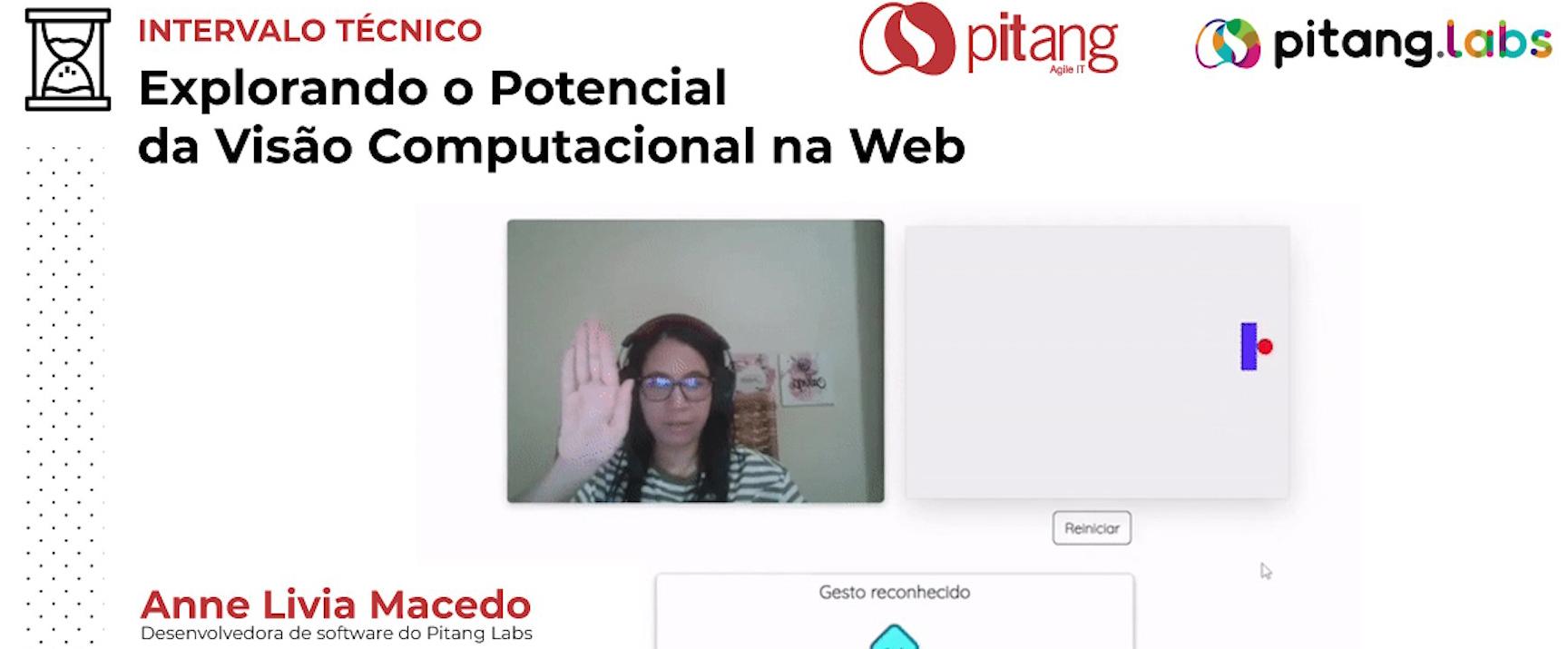
Next, the application page will open in your browser, allowing you to provide sample images for classifying gestures (up, down, left, and right) in real time via Webcam. After adding the necessary amount of examples to classify each class, you can control the game using these gestures, as shown in the example below. The more examples you add, the higher the model's accuracy will be.
With this blog post, you have gained knowledge about implementing computer vision applications on the web, taking into account the following key points covered:
1. Introduction to Computer Vision: A brief overview was provided covering the concept of computer vision, its potential applications, and the use of computer vision algorithms in web-focused applications.
2. The ML5.js Library: In this topic, ML5.js was introduced, which can be used for various Machine Learning and Computer Vision tasks in the Browser, such as real-time image classification.
3. MobileNet and KNN: We introduced MobileNet, a deep learning architecture optimized for devices with limited computational resources such as embedded and web applications, and KNN (K-Nearest Neighbors), a machine learning algorithm used for data classification.
4. Implementation of the Real-Time Gesture Classification Application and Practical Application to Game Control: We detailed the process of implementing the gesture classification application using the ML5.js library, and described how this classification can be applied to interactive game control, enabling the creation of more immersive and intuitive user experiences.
References
Pournaras, Xenofon, and Dimitrios A. Koutsomitropoulos. "Deep learning on the web: state-of-the-art object detection using web-based client-side frameworks." 2020 11th International Conference on Information, Intelligence, Systems and Applications (IISA. IEEE, 2020.
ML5.js. Available at: <https://learn.ml5js.org/#/>.
Nikhil Thorat. How to build a Teachable Machine with TensorFlow.js. Available at:
<https://observablehq.com/@nsthorat/how-to-build-a-teachable-machine-with-tensorflow-js>.


